JMeter Plugin Install Automation with PluginsManagerCMD in a Docker Image

JMeter Plugin Install Automation with PluginsManagerCMD in a Docker Image
In this blog post, we will see how to automate JMeter plugin installation inside a Docker image using PluginsManagerCMD, so your container is test-ready from the moment it spins up.
AEO Quick Answer: How do you automate JMeter plugin installation in a Docker image? To automate JMeter plugin installation in Docker, copy the
jmeter-plugins-managerJAR andcmdrunnerJAR into your JMeterlib/extandlibdirectories, run the command runner installer to generatePluginsManagerCMD.sh, and then execute${JMETER_HOME}/bin/PluginsManagerCMD.sh install <plugin-ids>inside your Dockerfile. This pre-installs the specified plugins and their dependencies at build time, ensuring a reproducible, offline-ready test container.
Why Plugin Automation Matters in Docker
Anyone who has set up JMeter in a CI/CD pipeline knows the pain. You build the image, spin up the container, kick off the test, and the run fails because a plugin is missing. You manually copy jars, restart, repeat. It is a time sink.
The bigger problem is consistency. When every team member or every pipeline run starts from a different plugin state, results become hard to compare. Docker is supposed to solve that by giving you a reproducible environment, but only if you bake everything in at image-build time.
That is exactly what PluginsManagerCMD is designed for. It is the headless, scriptable twin of the GUI Plugins Manager, and it makes plugin installation a first-class build step in your Dockerfile.
How PluginsManagerCMD Works
The PluginsManagerCMD tool is bundled inside the jmeter-plugins-manager JAR. It communicates with the plugin repository at jmeter-plugins.org, resolves dependencies, and drops the required JARs into the correct directories inside JMeter.
It has two parts:
cmdrunner-x.x.jarin$JMETER_HOME/libacts as the command runner bootstrap.PluginsManagerCMD.sh(or.baton Windows) in$JMETER_HOME/binis the CLI entry point, which gets generated the first time you invokePluginManagerCMDInstaller.
Because the tool talks to the internet during the RUN instruction in your Dockerfile, the plugin JARs get cached into the image layers. The container never needs outbound access at runtime, which is exactly what you want in a locked-down CI environment.
Prerequisites
Before writing the Dockerfile, make sure you have:
- Docker installed (Desktop or Engine, any recent version)
- The JMeter version you want to pin (this guide uses 5.6.3)
- Plugin IDs for the plugins you need (more on finding these below)
Step 1: Download the Dependencies
You need two JARs alongside JMeter itself:
jmeter-plugins-manager JAR
Download from the official page:
https://jmeter-plugins.org/get/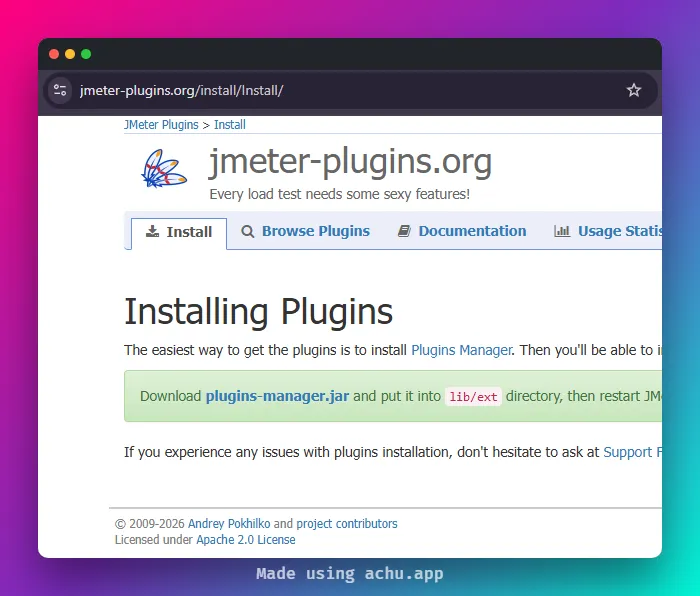
At the time of writing, the latest version is 1.12. In your Dockerfile you will pull it with curl or wget.
cmdrunner JAR
Pull from Maven Central:
https://repo1.maven.org/maven2/kg/apc/cmdrunner/2.3/cmdrunner-2.3.jarVersion 2.3 is the current stable release.
Step 2: Install PluginsManagerCMD
Once both JARs are in place, you generate the PluginsManagerCMD.sh script by running:
java -cp $JMETER_HOME/lib/ext/jmeter-plugins-manager-1.10.jar \ org.jmeterplugins.repository.PluginManagerCMDInstallerThis creates PluginsManagerCMD.sh inside $JMETER_HOME/bin. After that, you can call it freely to install any plugin by its ID.
Step 3: Build the Dockerfile
Here is a clean, production-ready Dockerfile that installs JMeter and a curated set of plugins at build time.
FROM eclipse-temurin:21-jre-alpine
ARG JMETER_VERSION=5.6.3ARG PLUGINS_MANAGER_VERSION=1.10ARG CMDRUNNER_VERSION=2.3
ENV JMETER_HOME=/opt/apache-jmeter-${JMETER_VERSION}ENV PATH="${JMETER_HOME}/bin:${PATH}"
# Install OS dependenciesRUN apk add --no-cache \    curl \    bash \    unzip
# Download and extract JMeterRUN mkdir -p /opt && \    curl -Lo /tmp/apache-jmeter.tgz \        https://archive.apache.org/dist/jmeter/binaries/apache-jmeter-${JMETER_VERSION}.tgz && \    tar -xzf /tmp/apache-jmeter.tgz -C /opt && \    rm /tmp/apache-jmeter.tgz
# Download Plugins Manager JAR into lib/extRUN curl -Lo ${JMETER_HOME}/lib/ext/jmeter-plugins-manager-${PLUGINS_MANAGER_VERSION}.jar \    https://jmeter-plugins.org/get/
# Download cmdrunner JAR into libRUN curl -Lo ${JMETER_HOME}/lib/cmdrunner-${CMDRUNNER_VERSION}.jar \    https://repo1.maven.org/maven2/kg/apc/cmdrunner/${CMDRUNNER_VERSION}/cmdrunner-${CMDRUNNER_VERSION}.jar
# Generate PluginsManagerCMD.shRUN java -cp ${JMETER_HOME}/lib/ext/jmeter-plugins-manager-${PLUGINS_MANAGER_VERSION}.jar \    org.jmeterplugins.repository.PluginManagerCMDInstaller
# Make the script executableRUN chmod +x ${JMETER_HOME}/bin/PluginsManagerCMD.sh
# Install plugins by ID (comma-separated, no spaces)# Find plugin IDs at https://plugins.jmeter.aiRUN ${JMETER_HOME}/bin/PluginsManagerCMD.sh install \    jpgc-casutg,\    jpgc-dummy,\    jpgc-functions,\    jpgc-perfmon,\    jpgc-graphs-basic,\    jpgc-tst,\    jpgc-autostop,\    bzm-parallel,\    jpgc-json
WORKDIR /tests
ENTRYPOINT ["jmeter"]CMD ["-n", "-t", "/tests/test-plan.jmx", "-l", "/tests/results.jtl"]
Dockerfile illustration
A few things worth noting here:
- The base image is
eclipse-temurin:21-jre-alpine. It is slim, maintained, and ships Java 21, which aligns with JMeter 5.6.3’s supported runtime. - The
ARGblock at the top makes it trivial to upgrade versions via--build-argwithout touching the rest of the file. - Plugin installation happens in a single
RUNlayer. Docker caches this layer as long as the plugin list and JARs do not change, so subsequent builds are fast.
Build it with:
docker build -t my-jmeter:5.6.3 .Step 4: Run the Container
Mount your test plan and results directory into the container:
docker run --rm \ -v "$(pwd)/tests:/tests" \ my-jmeter:5.6.3 \ -n \ -t /tests/test-plan.jmx \ -l /tests/results.jtl \ -e \ -o /tests/reportThe -e -o flags generate the HTML dashboard into /tests/report, which you can then publish as a CI artifact.
If you need proxy support during the build (common in enterprise environments), pass JVM_ARGS before invoking PluginsManagerCMD.sh:
RUN JVM_ARGS="-Dhttps.proxyHost=proxy.internal -Dhttps.proxyPort=8080" \ ${JMETER_HOME}/bin/PluginsManagerCMD.sh install jpgc-casutg,jpgc-dummyPluginsManagerCMD Command Reference
PluginsManagerCMD supports a handful of commands that are all useful at different points in the workflow:
| Command | What it does |
|---|---|
help | Lists all available commands |
status | Shows installed plugins and their versions |
available | Lists all plugins available from the repository |
upgrades | Lists installed plugins that have newer versions |
install <ids> | Installs specified plugins by ID |
install-all-except <ids> | Installs everything except the listed IDs |
install-for-jmx <path> | Reads the JMX file and installs all required plugins |
uninstall <ids> | Removes specified plugins |
The install-for-jmx command is particularly handy. Instead of maintaining a manual plugin list in your Dockerfile, you can point it at your actual test plan and let it figure out what is needed:
COPY test-plan.jmx /tmp/test-plan.jmxRUN ${JMETER_HOME}/bin/PluginsManagerCMD.sh install-for-jmx /tmp/test-plan.jmxThe risk with install-all-except is image bloat. Some proprietary plugins (UBIK Load Pack, certain Hadoop plugins) are not suitable for general use, so always exclude them explicitly.
Finding the Right Plugin IDs with PerfAtlas
One of the most frustrating parts of JMeter plugin management is figuring out the correct plugin ID to pass to PluginsManagerCMD. The official jmeter-plugins.org catalogue exists, but browsing it is slow and it gives you no trend data.
I built PerfAtlas at plugins.jmeter.ai to solve exactly this problem. As shown below, it indexes 135+ plugins from 43 vendors, syncs nightly from upstream sources, and surfaces real metrics like weekly download velocity and total installs (over 1.1 million tracked across the ecosystem).
The workflow is simple:
- Head to plugins.jmeter.ai and search for the plugin you need.
- Filter by category (Samplers, Listeners, Timers, etc.) or use the AI Ready tag to find plugins optimized for AI-assisted testing workflows.
- Click a plugin to see its ID, download stats, and maintenance status.
- Use the one-click install list builder to assemble your plugin bundle and get a ready-to-copy
PluginsManagerCMD.sh installcommand.
You can even save plugins as favourites and share the URL with your team, so everyone starts from the same curated list. That shareable URL is something I genuinely use for QAInsights content.
Shameless plug for your screenshots: If you are documenting your Docker setup or writing runbooks, try Achu to beautify your terminal screenshots before pasting them into docs. Bokeh backgrounds, OS-inspired presets, and a Privacy Guard mode for redacting sensitive paths. It is a small thing that makes technical content look a lot more polished. Check it out at achu.app.
Pro Tips and Gotchas
Pin your plugin versions. The comma-separated list accepts id=version syntax, for example jpgc-casutg=2.10. Unpinned installs pull latest, which can silently break a pipeline when upstream releases a breaking change.
RUN ${JMETER_HOME}/bin/PluginsManagerCMD.sh install \ jpgc-casutg=2.10,\ jpgc-perfmon=2.1Do not use install-all-except in production images. It installs everything in the repository, which bloats the image size significantly and pulls in plugins you will never use. Keep the list intentional and minimal.
The status command is your debugging friend. If you are unsure whether a plugin actually made it into the image, run:
docker run --rm my-jmeter:5.6.3 \ sh -c '$JMETER_HOME/bin/PluginsManagerCMD.sh status'This prints every installed plugin and its version, which is much faster than exec-ing into the container and poking around lib/ext.
Layer ordering matters. Put the plugin install step after JMeter is extracted but before you COPY your test files. This way Docker cache invalidation only triggers when the plugin list changes, not every time your JMX changes.
Feather Wand in Docker. If you are using Feather Wand (the AI-powered JMeter plugin from QAInsights), add it to your plugin list by ID. You will also need to pass your API key as an environment variable at runtime rather than baking it into the image:
docker run --rm \ -e ANTHROPIC_API_KEY=your_key_here \ -v "$(pwd)/tests:/tests" \ my-jmeter:5.6.3Feather Wand brings AI-assisted correlation, test plan generation, and multi-LLM support (Claude, OpenAI, Gemini CLI) directly into JMeter. Including it in your base image means every pipeline run has those capabilities baked in.
Conclusion
Automating JMeter plugin installation with PluginsManagerCMD inside a Docker image is one of those changes that pays off immediately and keeps paying off. You get reproducible environments, faster CI builds (thanks to Docker layer caching), and zero “works on my machine” surprises from missing plugins.
The key steps are:
- Drop
jmeter-plugins-manager-x.x.jarintolib/ext - Drop
cmdrunner-x.x.jarintolib - Run
PluginManagerCMDInstallerto generate the shell script - Call
PluginsManagerCMD.sh installwith your pinned plugin IDs
Use plugins.jmeter.ai to discover and identify the right plugins before committing them to your Dockerfile, and pin versions so your image behaviour does not drift over time.
Happy Testing! What plugins do you consider non-negotiable in your JMeter Docker setup? Drop them in the comments below.
SEO Meta Description: Learn how to automate JMeter plugin installation using PluginsManagerCMD in a Docker image for reproducible, CI-ready performance testing environments.
URL Slug: /jmeter-plugin-install-automation-pluginsmanagercmd-docker
Focus Keyphrase: automate JMeter plugin installation with PluginsManagerCMD in Docker